Challenges in Cyql
With a challenge your club keeps a ranking over a period you set yourself. You can run several at the same time, for example a ranking for the whole season and a short one for the winter. This article explains which model suits your club, how you create a challenge and how you make rides count.
In this article
- What is a challenge?
- Who can manage challenges?
- Which model do you choose?
- Creating a challenge
- Making rides count
- Archiving or deleting a challenge
What is a challenge?
A challenge is a ranking with its own title, a start and end date and a way of scoring. Members see it in the app as soon as you set it to active. The standings are updated automatically based on the rides linked to the challenge, and those rides must be active and must have already taken place.
Who can manage challenges?
Administrators of the club, from the dashboard. Challenges are included in every plan, so you do not need a different subscription for them.
The screenshots in this article come from a dashboard set to English. Where the Dutch name differs from the English one, it is shown in brackets.
Which model do you choose?
You choose the model when you create the challenge. There are two.
Club challenge
- For a ranking within your own club.
- You link rides to the challenge yourself and decide that way what counts.
- You choose whether only rides verified by Strava count.
Public challenge
- For bringing your club to the attention of cyclists outside it.
- Cyql users within a specified radius of a location can join.
- Only rides verified by Strava count. That is fixed and you cannot switch it off.
Creating a challenge
Step 1
In the menu under Club, click Challenges. You will see the overview with the challenges you already have.
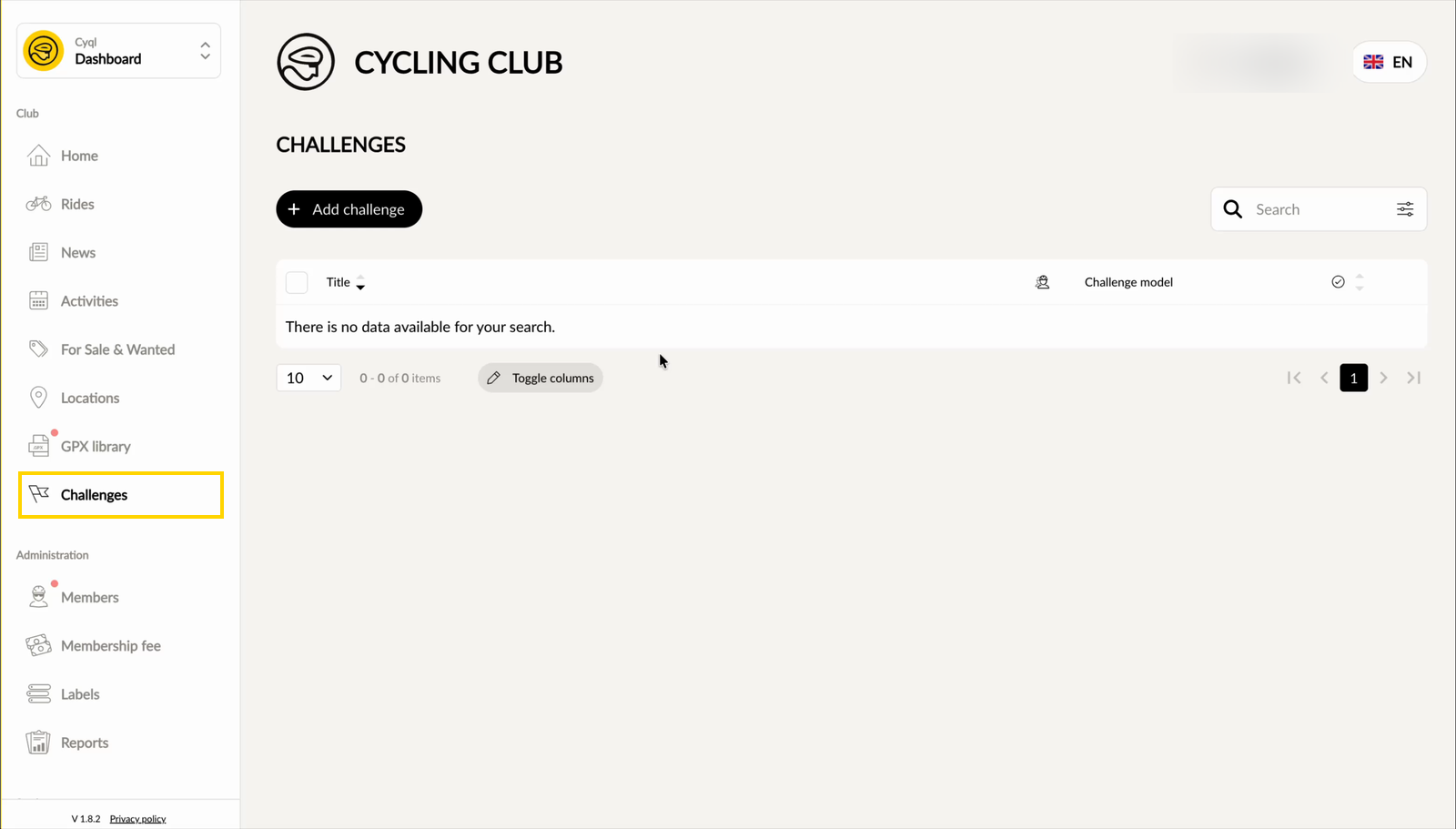
Step 2
Click Add challenge (Nieuwe challenge).
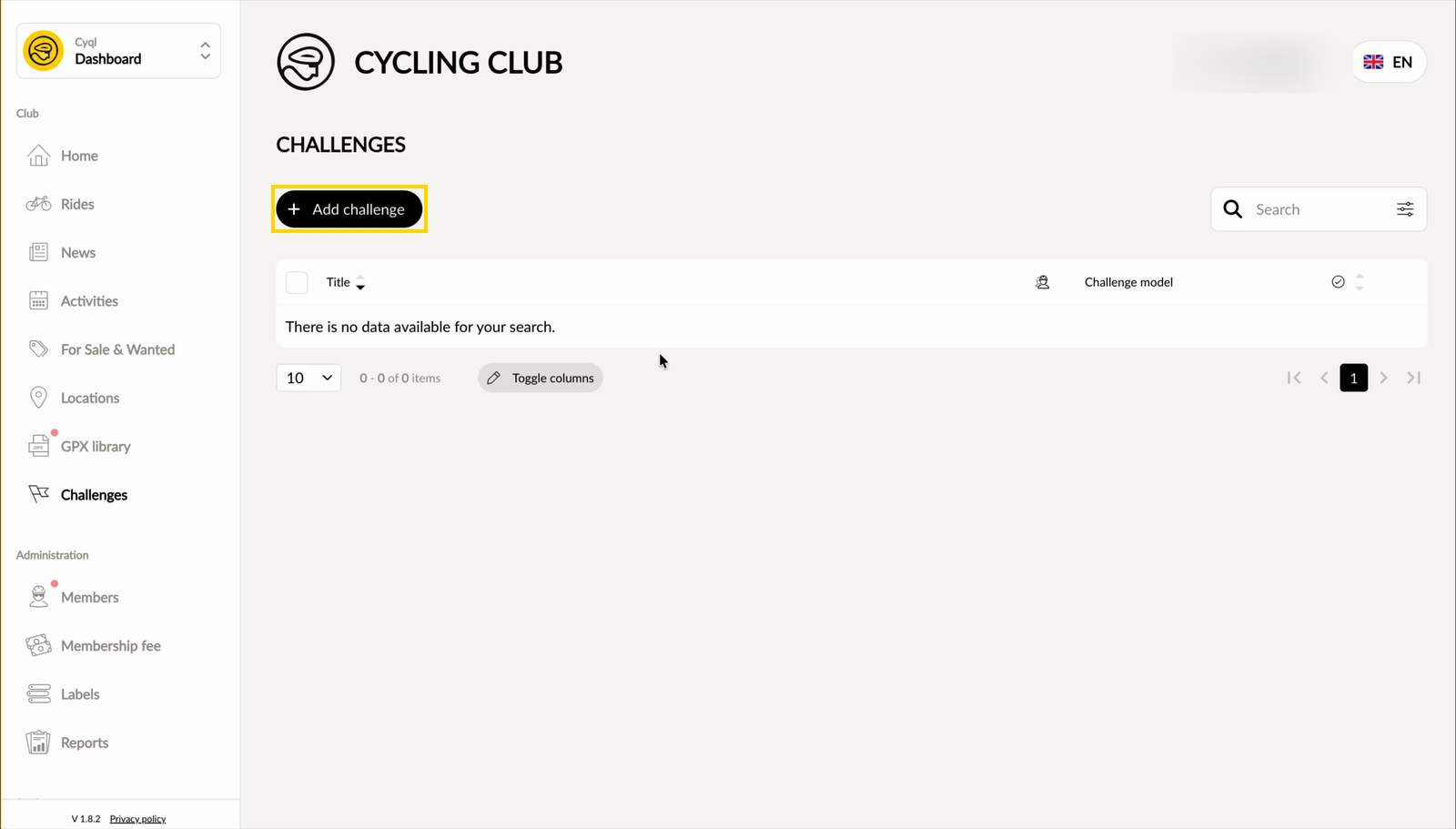
Step 3
Choose the model that suits your ranking, Club challenge or Public challenge (Publieke challenge), and click Next (Volgende).
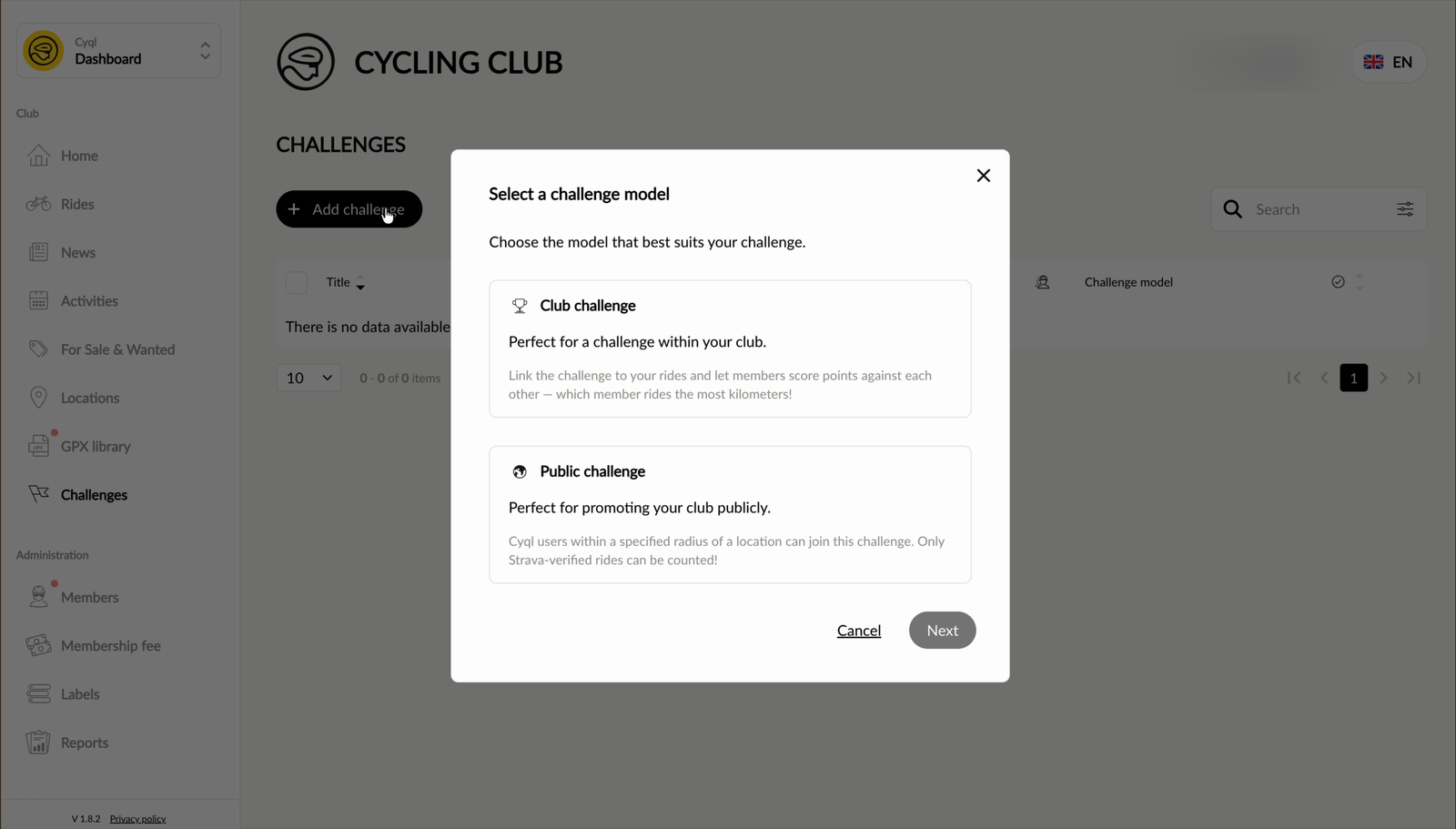
Step 4
Fill in the Title (Titel). This is the name members see in the app. Adding a description is optional.
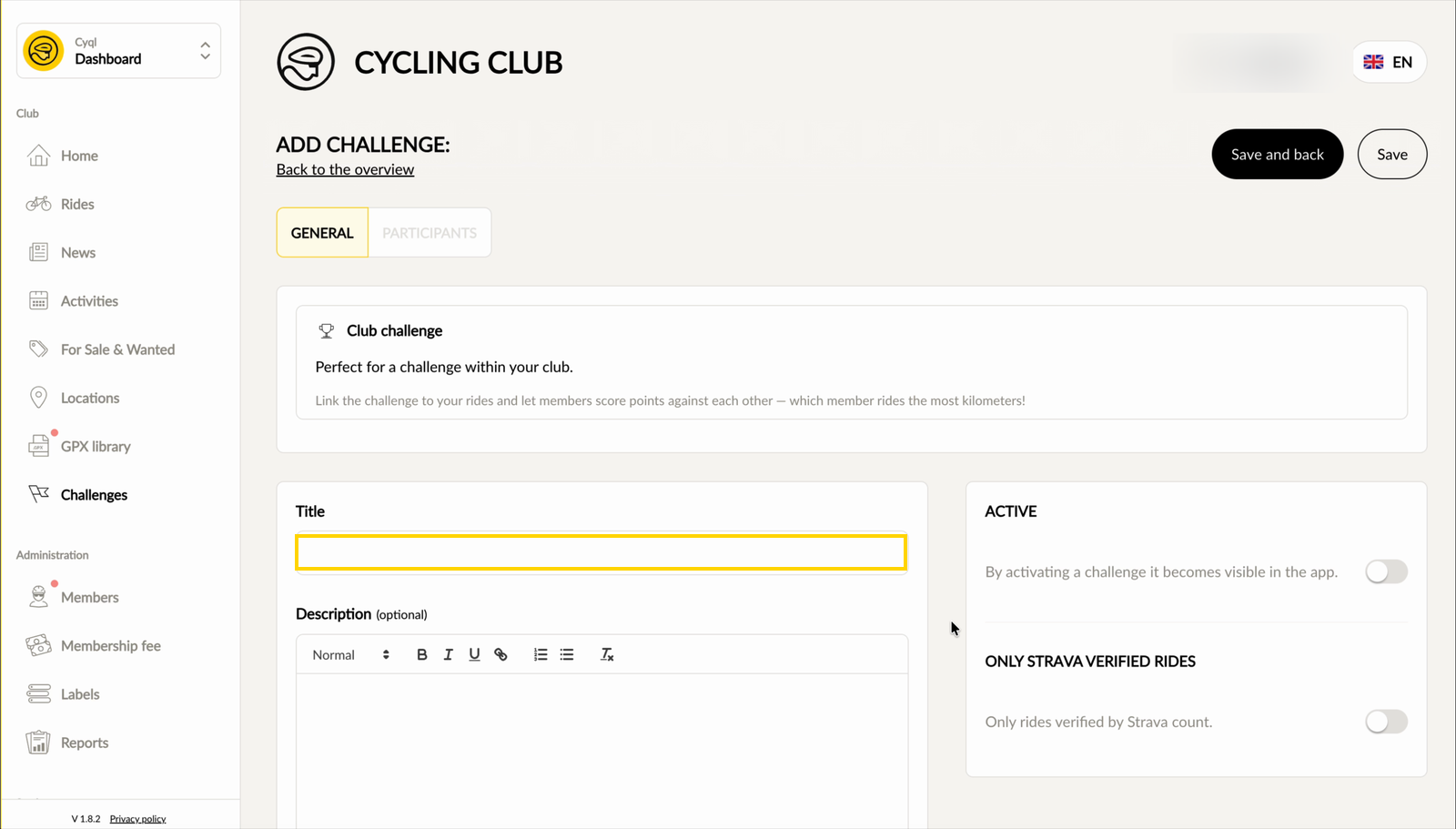
Step 5
Fill in the Start date (Startdatum) and the End date (Einddatum), and choose under Type how the scoring works. There are three ways:
- Number of kilometers ridden (Aantal gereden kilometers)
- Number of rides participated (Aantal deelgenomen ritten)
- Score awarded to a ride (Score toegekend aan een rit), where you decide per ride how many points it is worth
Step 6
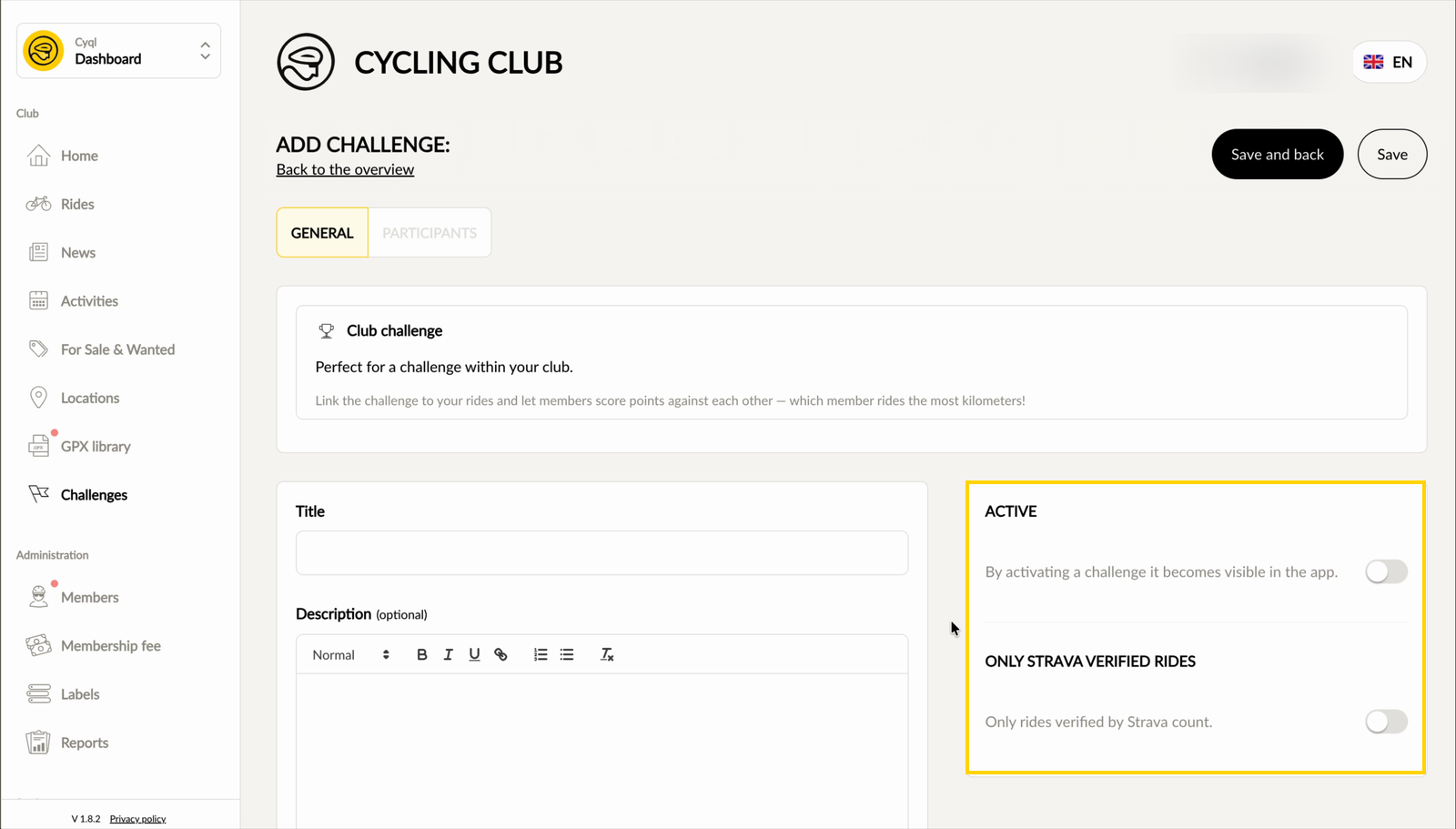
Switch on Active (Actief). A challenge only becomes visible in the app once it is active. If you are creating a club challenge, you will also find Only Strava verified rides (Alleen Strava geverifieerde ritten) here. A public challenge does not have that switch, because there only rides verified by Strava count.
Step 7
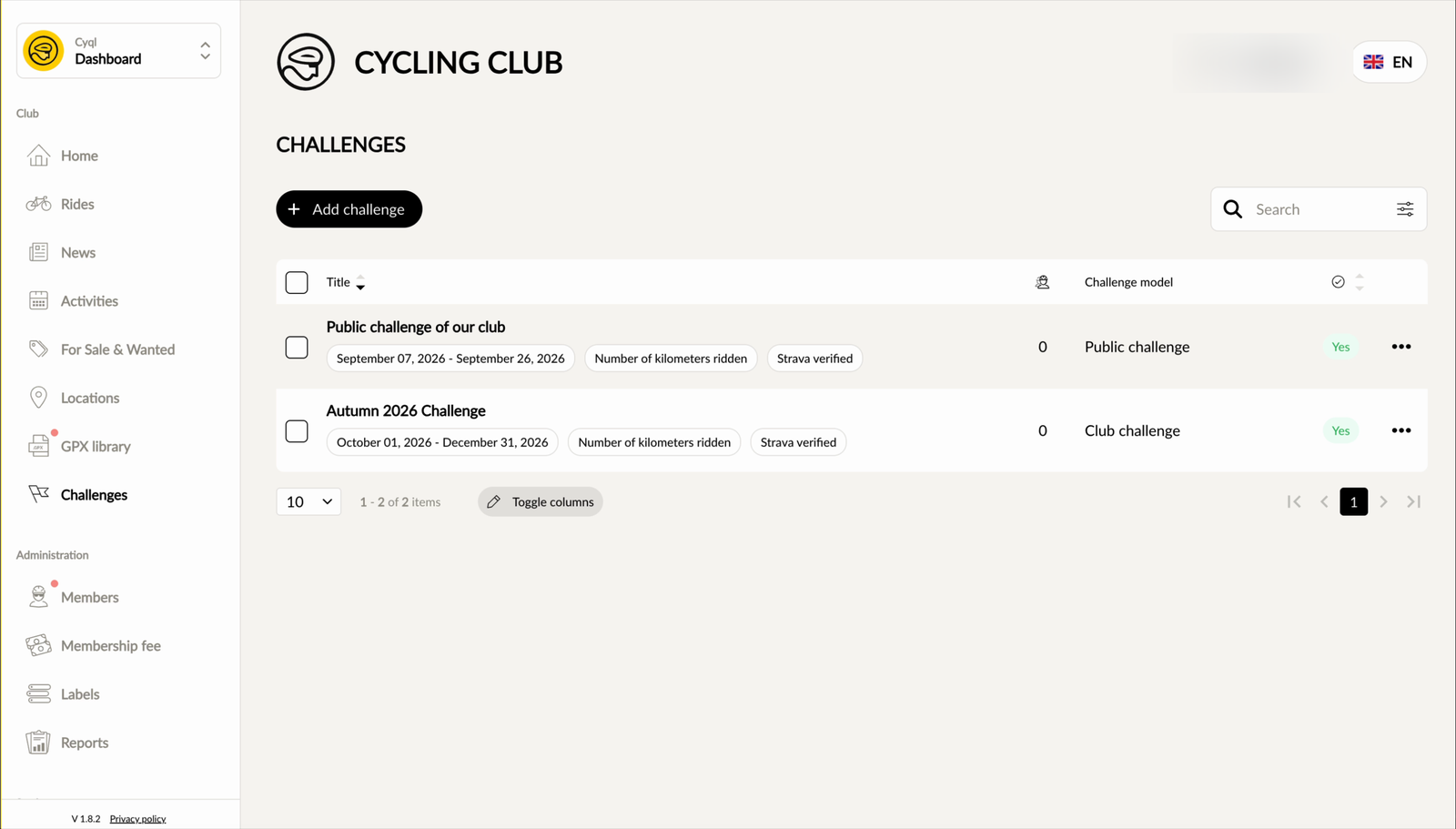
Click Save and back (Opslaan en terug). The challenge now appears in the overview, with the period, the way of scoring, the number of participants and whether it is active.
Making rides count
A club challenge scores on the rides you link to it. You do that on the ride itself, not on the challenge.
Open a ride in the Rides (Ritten) menu or create a new one, and indicate there which challenge the ride belongs to. If the challenge scores on points per ride, fill in under Challenge score how many points the ride is worth.
The standings are updated once the ride has taken place. A ride still in the future does not count yet.
Archiving or deleting a challenge
In the overview there is a menu with three dots behind every challenge. There you choose Archive challenge (Challenge archiveren) or Delete challenge (Challenge verwijderen).
Deleting cannot be undone. If a ranking has simply come to an end, choose archiving.
Was this article helpful?
That’s Great!
Thank you for your feedback
Sorry! We couldn't be helpful
Thank you for your feedback
Feedback sent
We appreciate your effort and will try to fix the article