Family membership in Cyql
With a family membership, a family head pays the membership and family members join at a family rate, or for free. You set it up under Membership fee with two batches that are linked to each other. Once the family head has paid, the household gets a family code that the family members use to join.
This article explains how to create the two batches, how the family head and the family members pay, and how to manage a household.
In this article
- What is a family membership?
- Who can manage family memberships?
- What does a family membership require?
- Creating a family head batch
- Creating a family member batch
- How does the family head pay?
- How does a family member join?
- Viewing and managing a household
- What happens when the family head is refunded?
- Preparing the family membership for a new season
What is a family membership?
A family membership consists of two batches:
- The family head batch. It holds the member who pays the full membership. You set how many family members one household may have.
- The family member batch. It is linked to the family head batch and has its own price, for example € 50 for a partner or € 25 for a youth member. You can create more than one family member batch for a single family head batch.
When a family head pays, Cyql creates a household with a six-character family code. The code is in the confirmation email to the family head. A family member enters the code on their payment page and is then linked to the household.
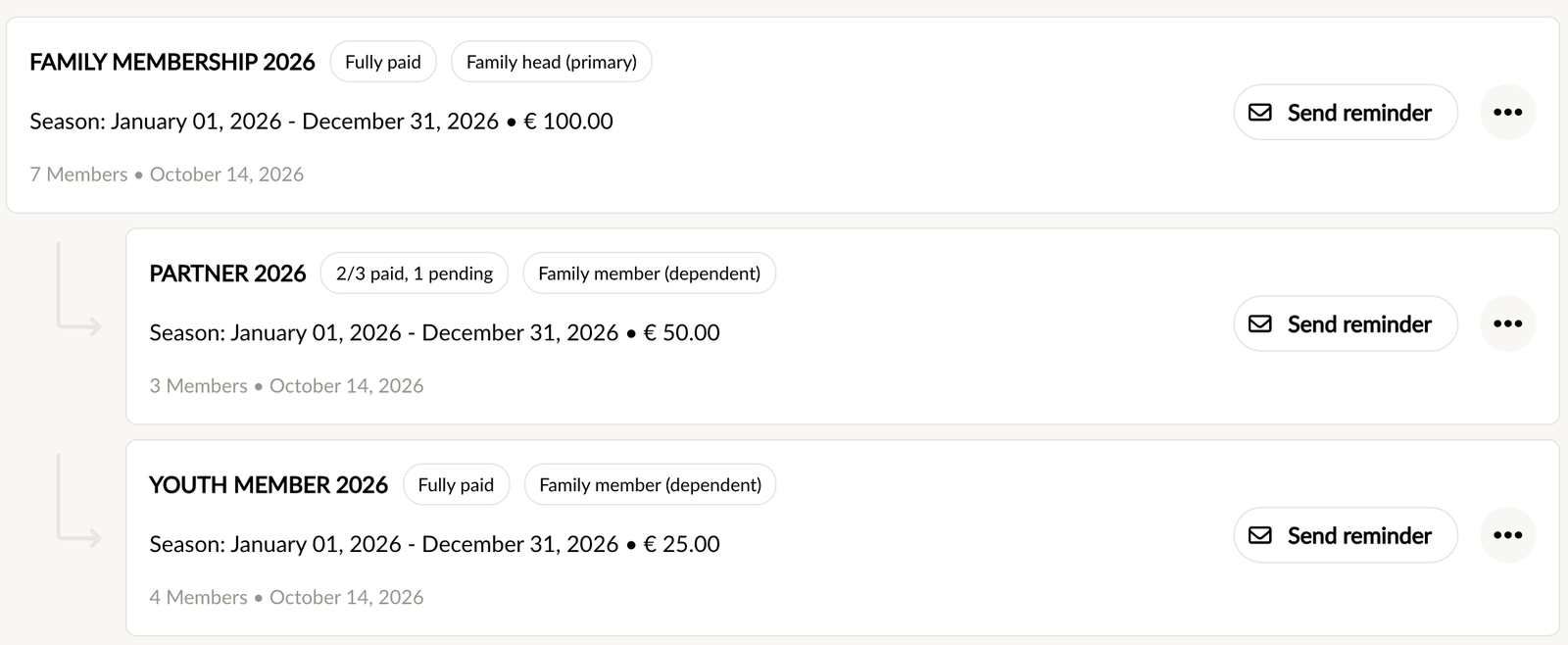
In the batch overview you recognise the batches by the labels Family head (primary) and Family member (dependent). A family member batch is indented below its family head batch.
Who can manage family memberships?
The same people who manage the membership fee: club administrators, and members who have been given the Membership fee role. With read-only access you can see the batches but not create them. Only someone who is allowed to delete can dissolve a household.
What does a family membership require?
- Both batches use the Season model. The Anniversary model is not supported.
- The family head batch allows at least 1 family member.
- The season of the family member batch falls within the season of the family head batch. It does not start earlier or end later.
- If the family head batch charges pro rata, the family member batch does too, in the same way. Someone who joins in the last quarter therefore also pays a quarter of the family rate as a family member.
Creating a family head batch
Step 1
In the menu under Administration, click Membership fee and then Add batch. Choose Season.
Step 2
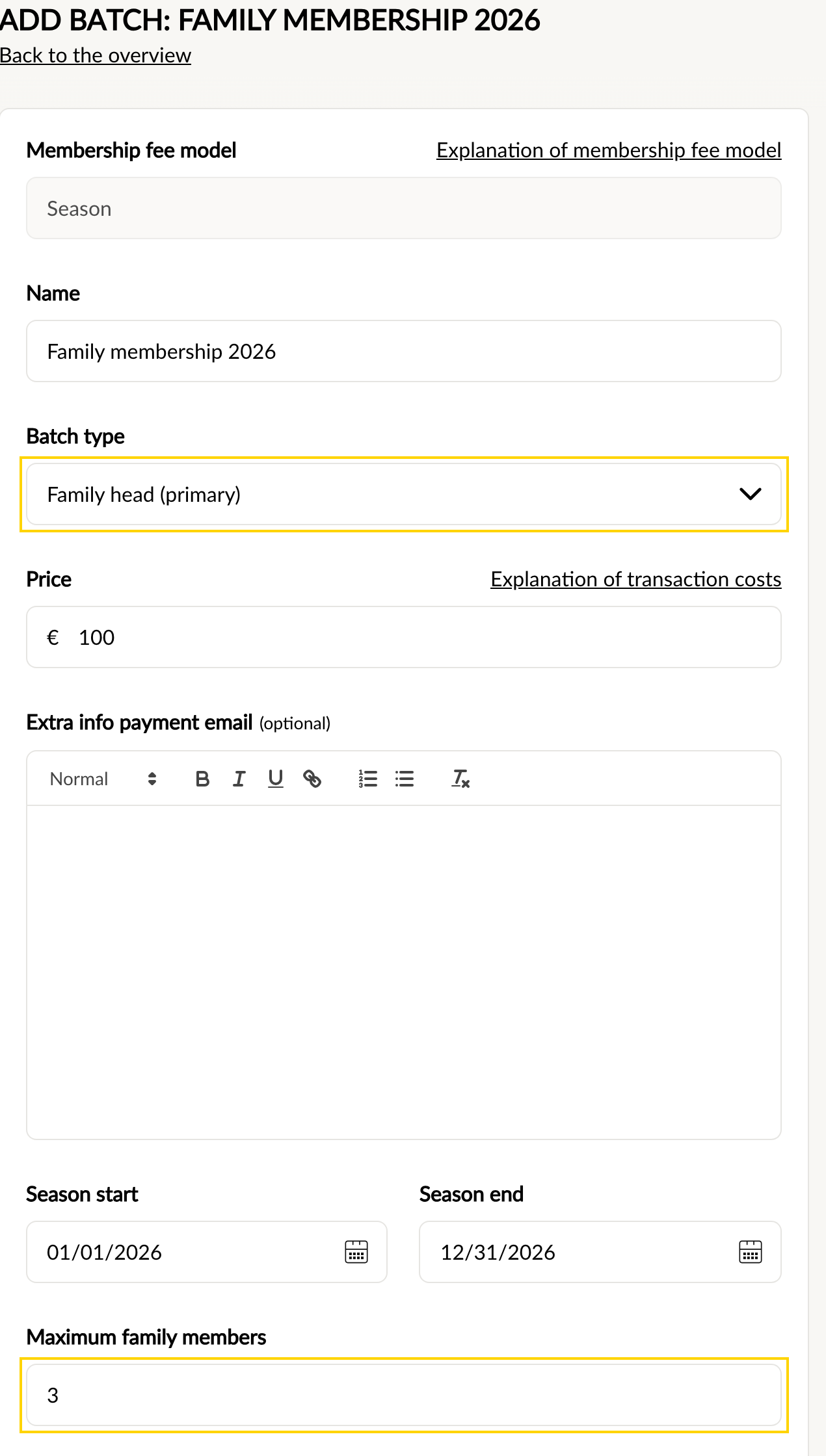
Enter the name, the price and the season dates, as for a regular batch. Under Batch type, choose Family head (primary). The field Maximum family members then appears at the bottom of the form. Enter how many family members one household may have.
Step 3
Click Save and back. The batch now appears in the overview with the label Family head (primary).
Creating a family member batch
Step 1
Click Add batch again and choose Season.
Step 2
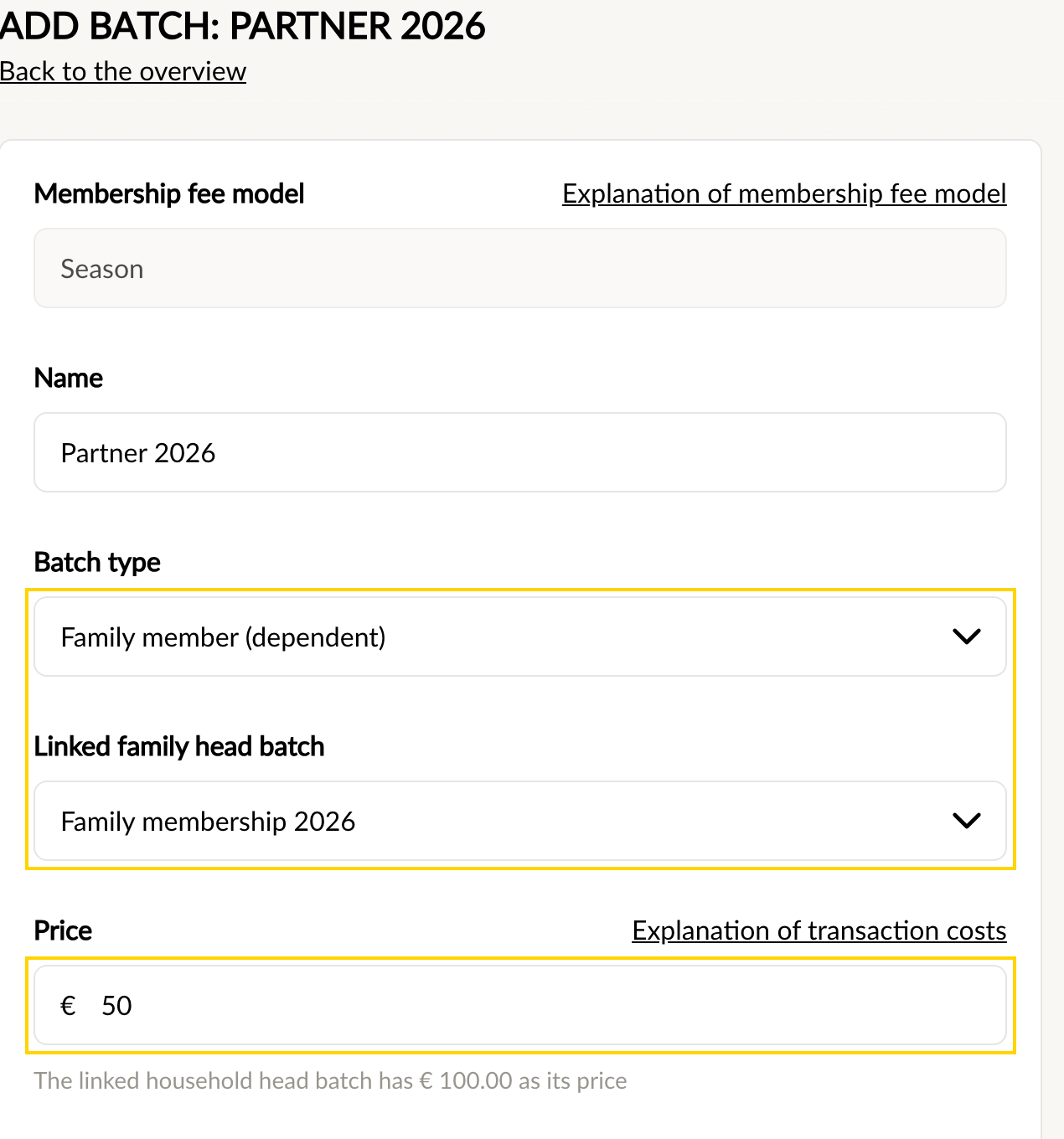
Under Batch type, choose Family member (dependent), and under Linked family head batch select the batch this batch belongs to. You cannot save until you have selected one. The family member batch takes the settings on the right from the family head batch.
Step 3
Enter the family rate under Price. The field starts empty; below it you see the price of the linked family head batch for reference. Enter € 0 if family members join for free.
Step 4
Click Save and back. The batch appears in the overview with the label Family member (dependent).
If you later change auto-renewal, the membership dates or Publicly selectable on the family head batch, those settings carry over to the linked family member batches.
How does the family head pay?
Add the family head to the family head batch with Add members, or let the member choose the batch in the app. The family head receives a payment email. The payment page shows which season the membership is for, when it starts and what amount is due pro rata.
After payment, the family head receives a confirmation email with the family code. If you mark the family head as paid manually, the household is created as well.
Ask the family head to pass the code on to the family members. The code is not shown on the page after payment, only in the email.
How does a family member join?
A family member ends up in a family member batch in one of two ways: you add the member with Add members, or the member chooses the batch in the app under "As a family member". For that, the batch must be set to Publicly selectable.
Step 1
The family member receives an email asking them to activate their family membership, and clicks the button to enter the family code.
Step 2
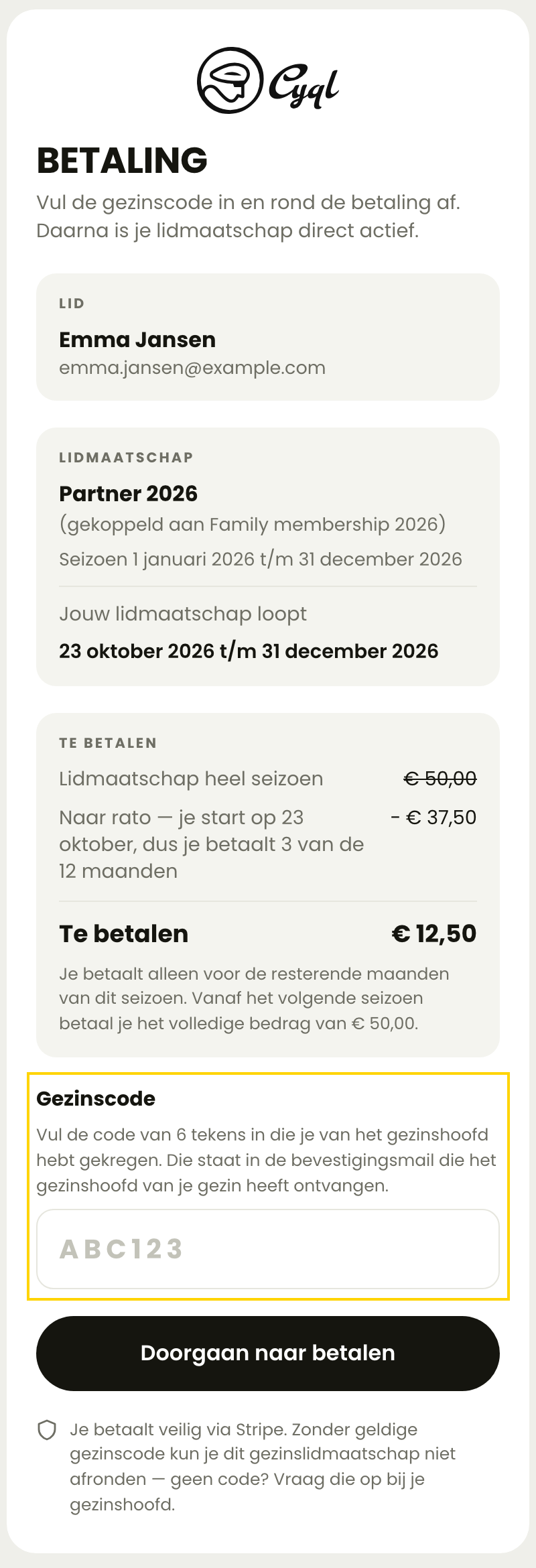
The family member enters the family code and clicks the button to continue to payment. Capitals and spaces do not matter. The amount is already shown before the code is entered. The payment page is shown in the member's own language; the example below is in Dutch.
Step 3
For a paid family member batch, the family member completes the payment. For a free batch, they activate the membership without paying. The membership is then active and linked to the household, and a confirmation email follows that names the family head.
If the code is not accepted
- The family head has not paid yet. The family member sees a message saying so; the code works once the family head has paid.
- The household is full. It already has as many family members as the family head batch allows.
- The code is unknown. It was copied incorrectly, it belongs to a different family head batch, or a new code has been generated.
- The member is already in another household, or is a family head themselves.
- Too many wrong codes have been entered. Wait fifteen minutes and try again.
Viewing and managing a household
In the family member batch you see for each member whether a family code is still needed (Needs household code) or whether the member is already Linked to household.
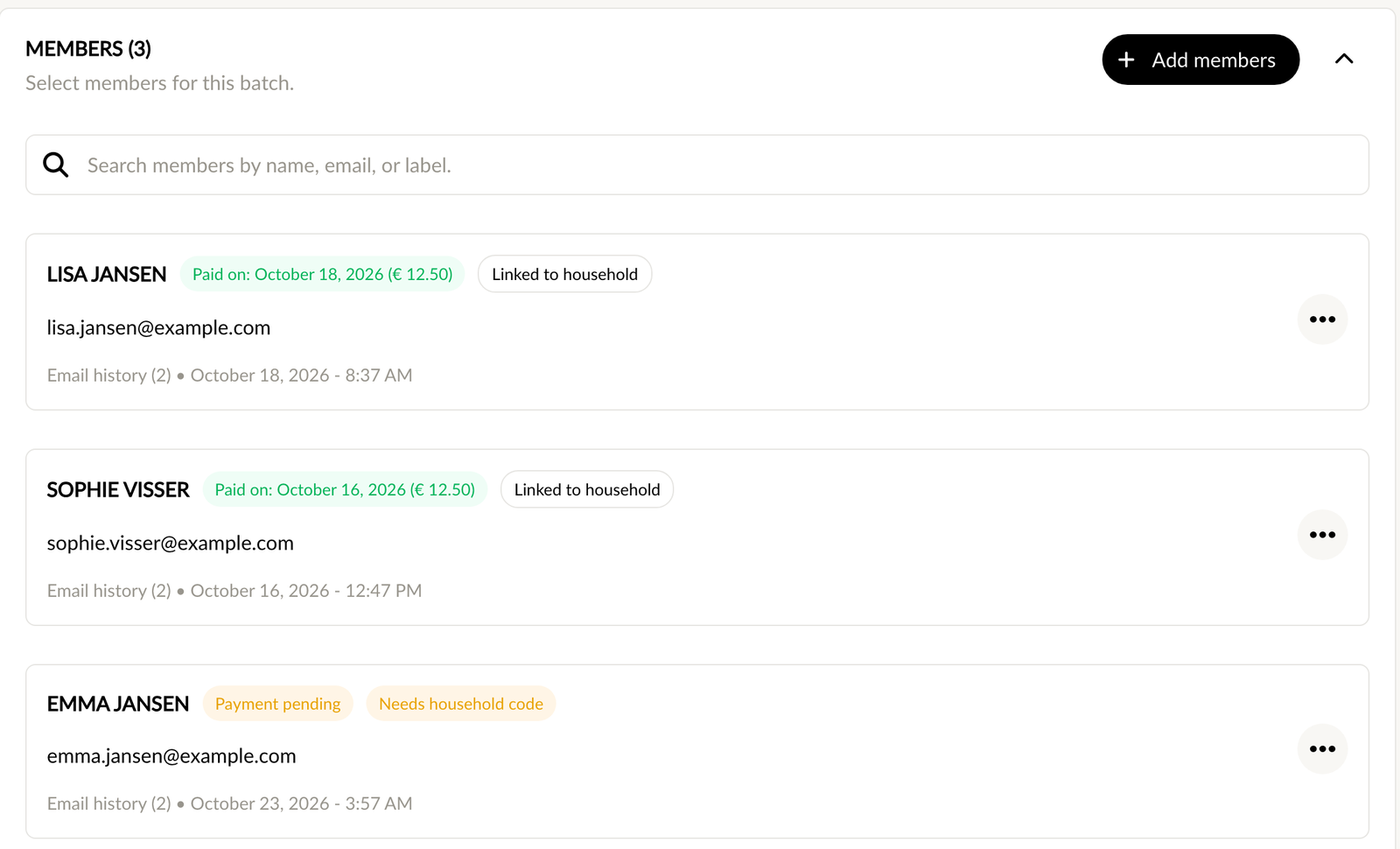
To open a household, open the family head batch and click the three dots next to the family head. Choose View household.

The Household window shows the family code with a copy button and the linked family members, with how many places are taken.
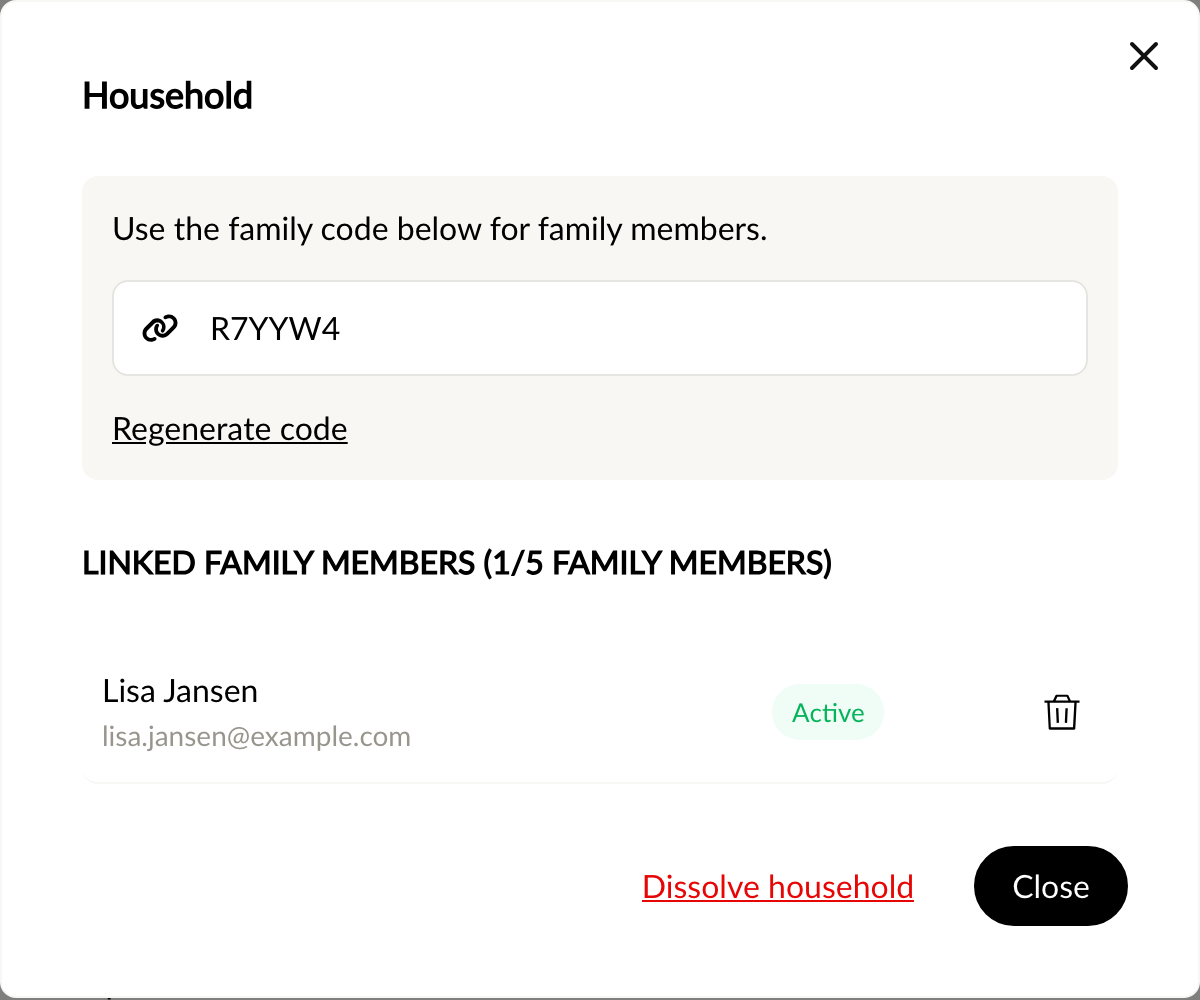
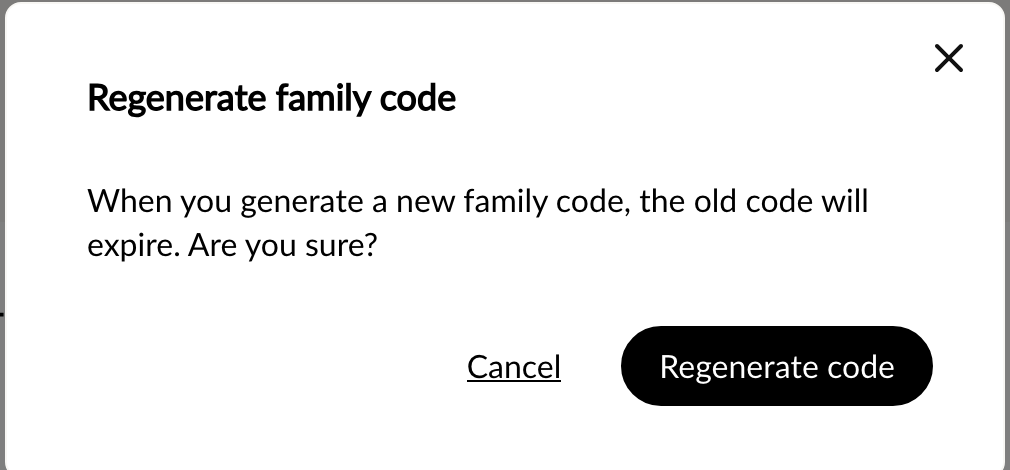
- Regenerate code: confirm with Regenerate code. The old code stops working. Family members who are already linked stay linked. The family head receives the new code by email.
- Unlinking a family member with the bin icon next to their name: the place in the household becomes available. The member can join again with the code. Removing a linked family member from the family member batch also frees the place.
- Dissolve household: the household ceases to exist.
You cannot link a member to a household manually in the dashboard. That always goes through the family code.
What happens when the family head is refunded?
If you refund the family head through Stripe, the household is revoked and the family code stops working.
- A family member who paid keeps their membership but is unlinked from the household.
- A free family member loses their membership and receives an email about it.
A member you marked as paid manually cannot be refunded through Cyql.
Preparing the family membership for a new season
Copy the family head batch and enter the dates of the new season. The family member batches are copied along and linked to the copy. No emails are sent when you copy.
When the season ends, the household expires, and with it the link of the family members. In the new season the family head receives a new family code after payment, and the family members join again with that code.
More about the membership fee
How to create a batch and follow payments is explained in Collecting the membership fee with a batch in the dashboard.
Was this article helpful?
That’s Great!
Thank you for your feedback
Sorry! We couldn't be helpful
Thank you for your feedback
Feedback sent
We appreciate your effort and will try to fix the article