Reports in the dashboard
With Reports you collect your club data as a csv file, for a period you choose yourself. You request the report in the dashboard and receive it by email straight away. This article explains who can request a report, which reports are available, and how you request one.
In this article
- What is a report?
- Who can request a report?
- Which reports can you request?
- Requesting a report
- Setting the period faster
- Missing a report?
What is a report?
A report is an overview of your club data for a period you choose yourself, for example all payments for paid rides or all members with their membership status. The report does not appear in the dashboard: Cyql sends it as a csv file to the email address of the account you are logged in with. You open a csv file in a spreadsheet program.
You request one report at a time. If you need two reports, you go through the steps twice.
Who can request a report?
Reports are part of the Starter, Pro and Elite plans. On Free you cannot request a report.
Which reports you can choose depends on your club's plan:
- Starter: Member overview, Ride summary per member and Ride statistics per ride.
- Pro and Elite: all five reports, so including Payment overview for paid rides and Race leader ride summary.
A report that is not part of your club's plan is still listed, with a label next to it that takes you to the subscription page. If you request such a report anyway, you get a message about the subscription instead of the report.
Your user also needs read rights for reports. An administrator sets those rights per user. Reports only have a read right, there is no separate right to change or delete anything. Without that right, the page opens with a message that you have no permissions.
Which reports can you request?
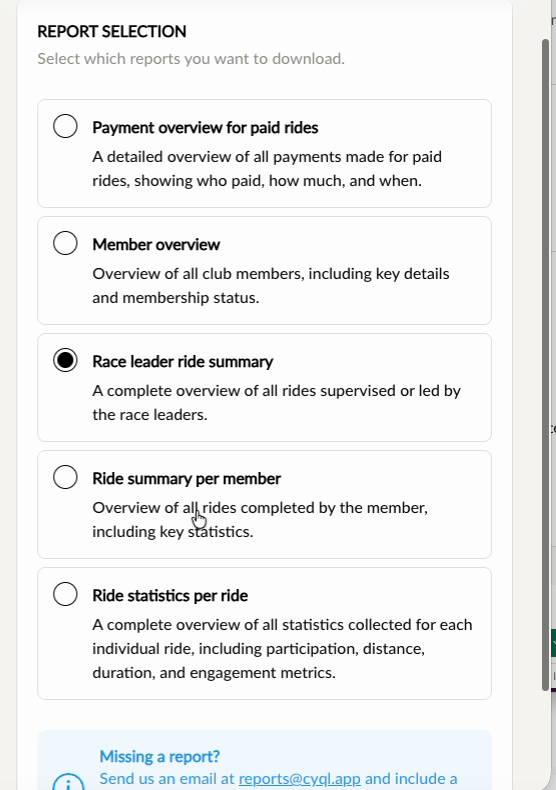
Under Report selection you find the reports with a short description:
- Payment overview for paid rides: a detailed overview of all payments made for paid rides, showing who paid, how much, and when.
- Member overview: all club members, including their key details and membership status.
- Race leader ride summary: a complete overview of all rides supervised or led by the race leaders.
- Ride summary per member: all rides completed by the member, including key statistics.
- Ride statistics per ride: all statistics collected for each individual ride, including participation, distance, duration, and engagement metrics.
Requesting a report
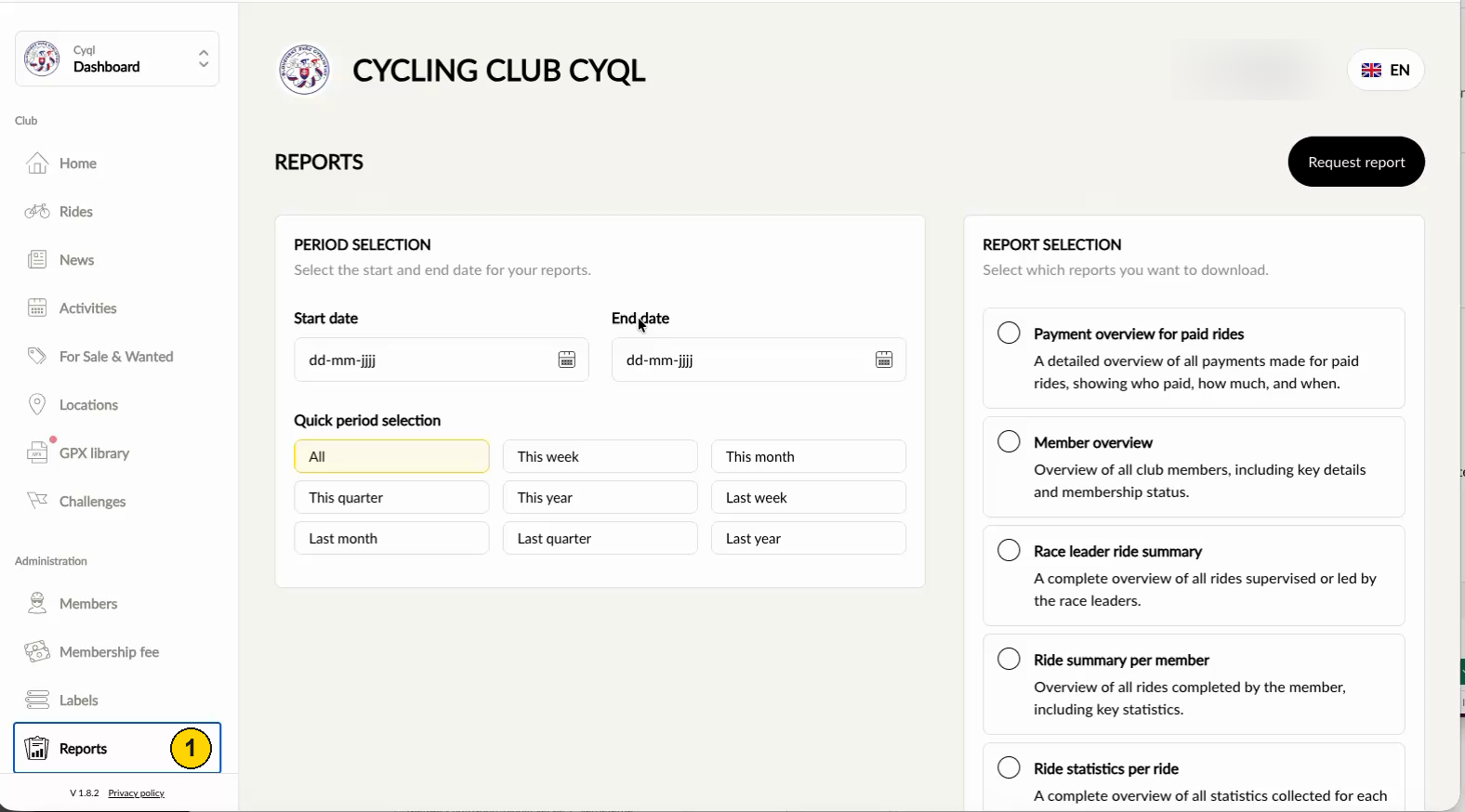
Step 1
In the menu under Club, click Reports.
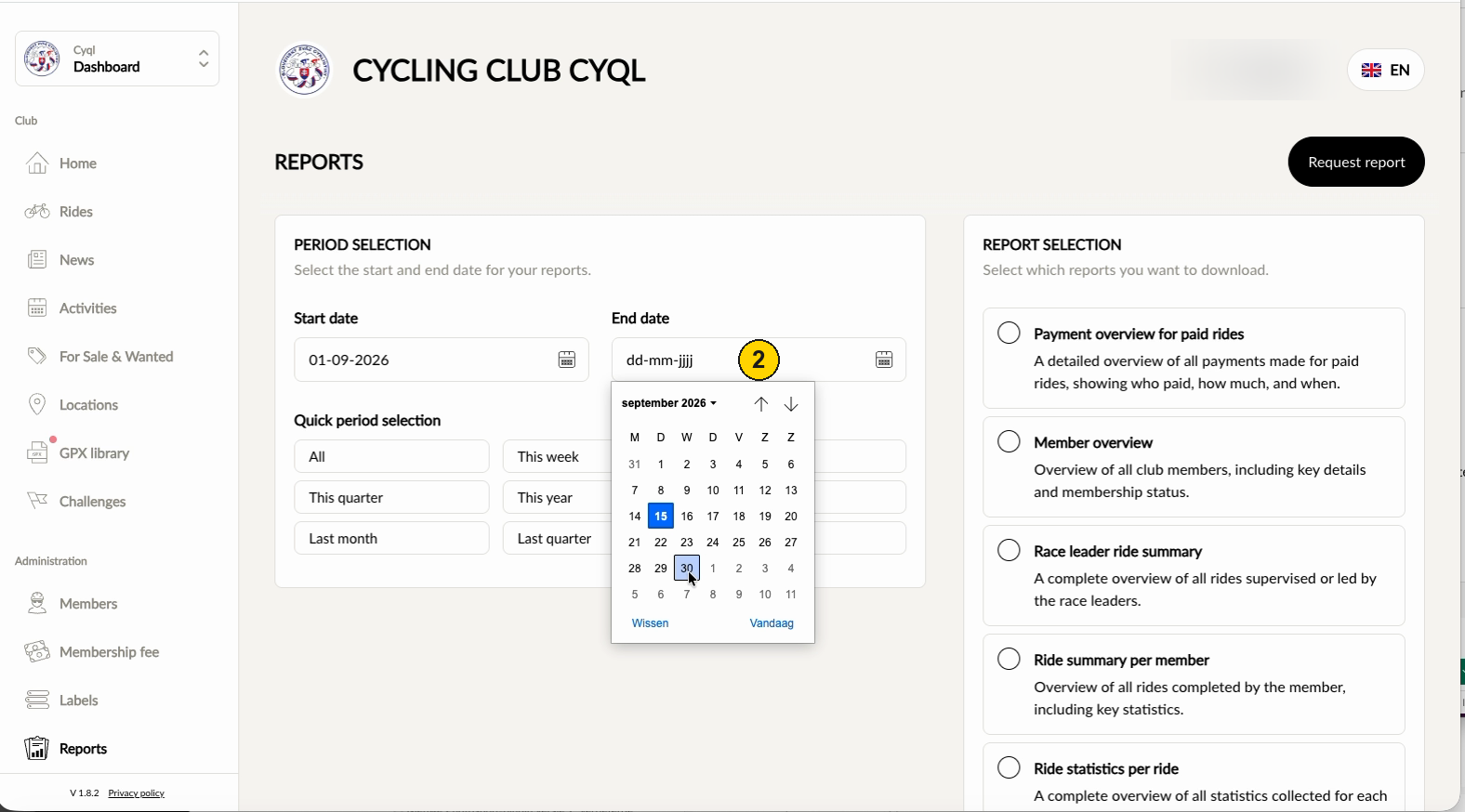
Step 2
In the Period selection block, fill in the Start date and the End date. Click the calendar icon in a field to pick a date. The report covers the period between those two dates.
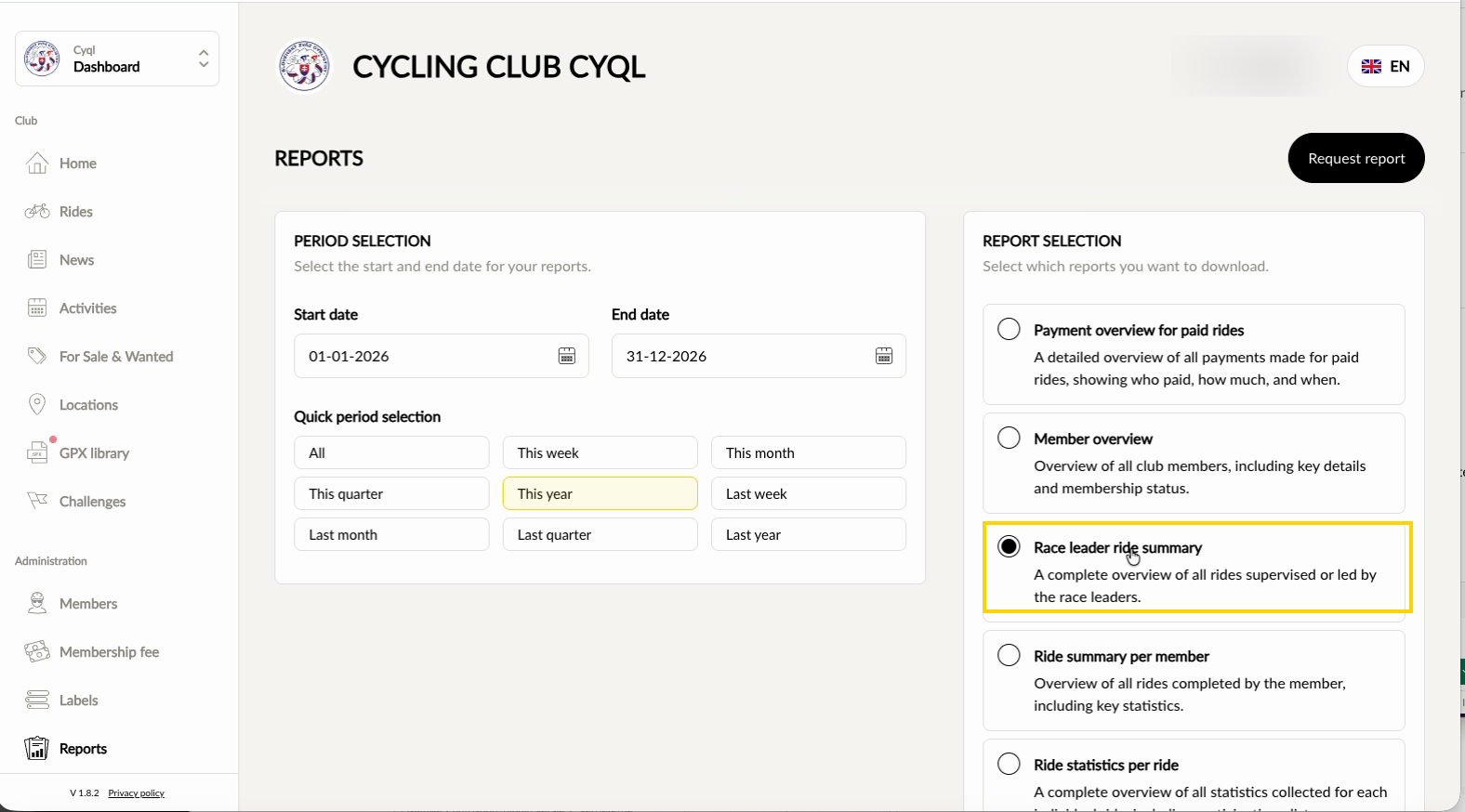
Step 3
In the Report selection block, choose the report you want to receive.
Step 4
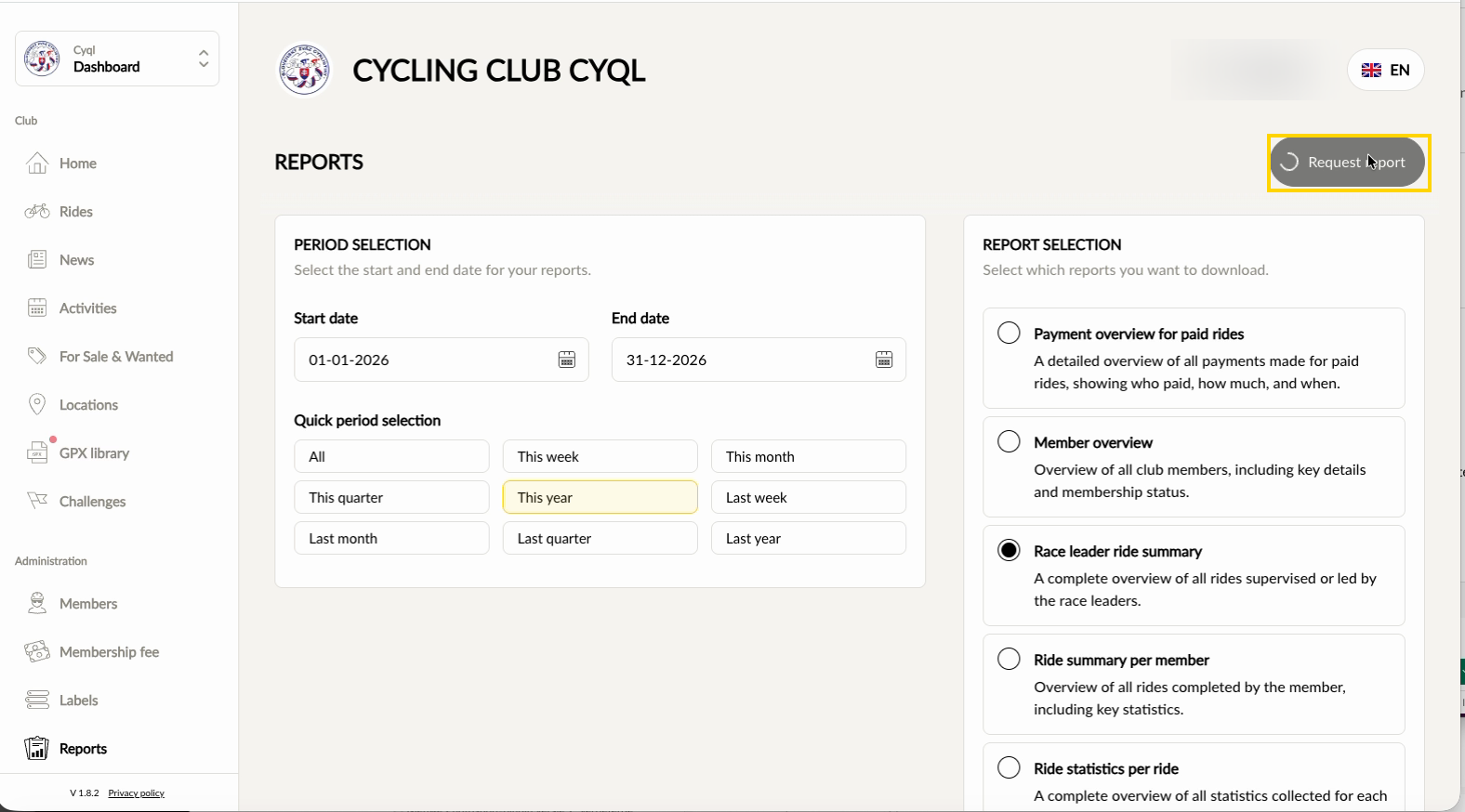
Click Request report in the top right.
Step 5
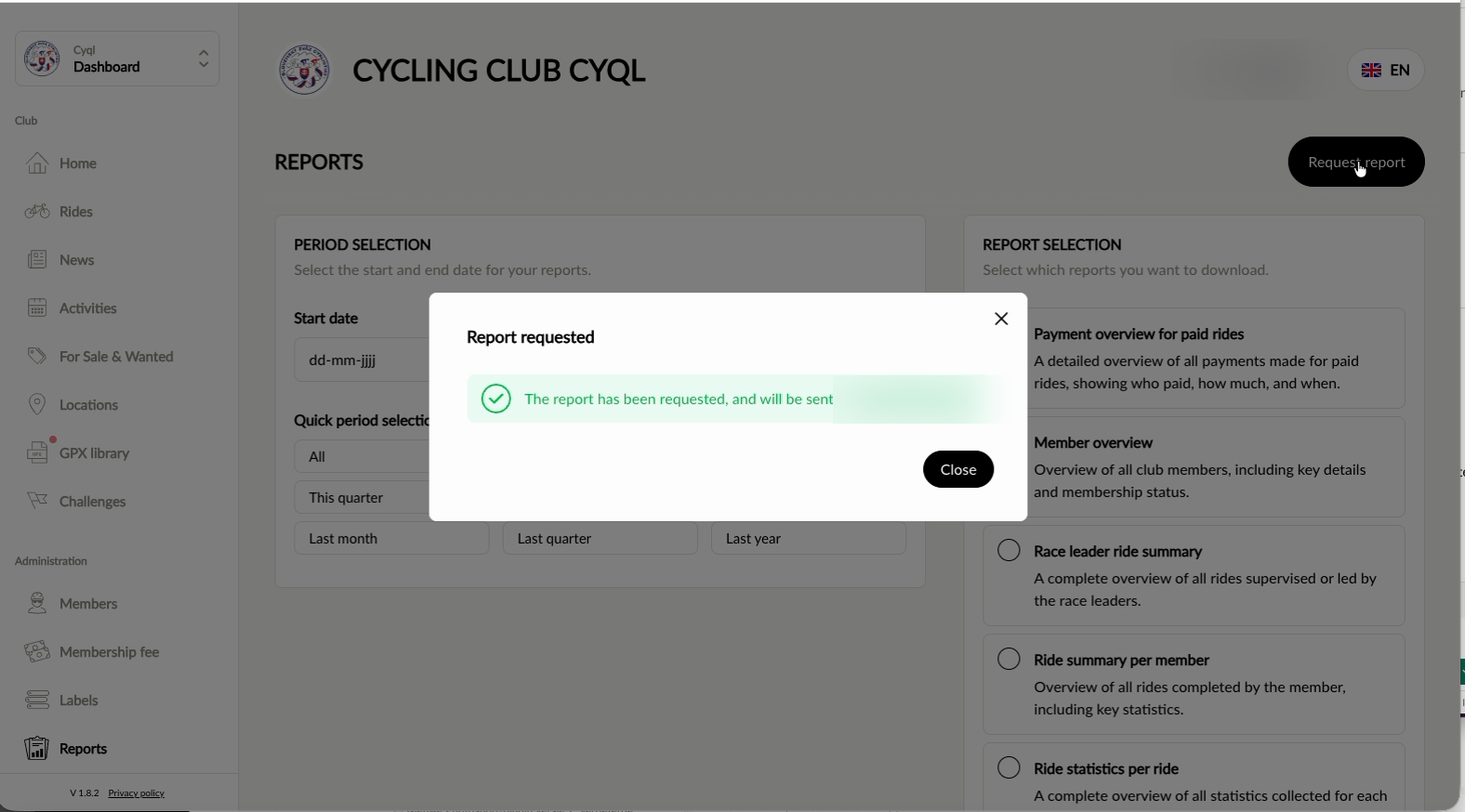
You get the message Report requested, showing the email address the report is sent to. Click Close. The email with the csv file arrives straight away. The period and the selected report are cleared afterwards, so you can request another report.
Setting the period faster
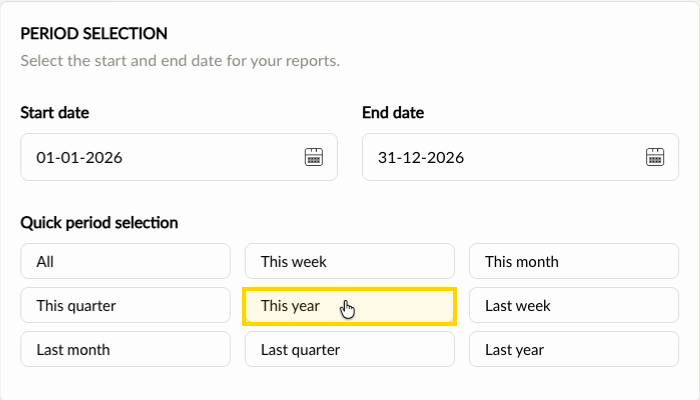
Under Quick period selection there are nine buttons. When you click one, Cyql fills in the start date and the end date for you. You can still adjust the dates afterwards.
- All: no start and end date, so all data available.
- This week, This month, This quarter and This year: the current week, month, quarter or year.
- Last week, Last month, Last quarter and Last year: the previous full week, month, quarter or year.
Missing a report?
If the report you are looking for is not listed, you can suggest it. Below the report selection you find the Missing a report? block. Send an email to reports@cyql.app and include a sample file. Cyql then assesses whether to add that report to the platform.
Was this article helpful?
That’s Great!
Thank you for your feedback
Sorry! We couldn't be helpful
Thank you for your feedback
Feedback sent
We appreciate your effort and will try to fix the article